
WKGB Online Licensing System
Manage your association's members, submit licence renewals and print approved licences in the WKGB Licensing System.
Manage your association's members, submit licence renewals and print approved licences in the WKGB Licensing System.
This guide covers the WKGB Licensing System at welshkarate.org.uk/sign-in. Start with your existing WKGB sign-in details, then choose a task from the links below. Your association account shows your association's members.
For member, licence or payment enquiries, contact WKGB Head Office. If something on the website does not behave as expected, use the support chat in the licensing system or email technical support. More about getting help.
Updated 26 October 2026. The example screens use fictional records and an illustrative fee; always check the charge shown in your account.
If you have just registered, follow the activation email instructions. Activation of a website account does not approve a member's licence; association access also depends on the account being correctly verified and linked by WKGB.
If you cannot sign in, use the password reset page to request an email link using the email address on your WKGB website account. Use the latest link and follow its instructions; if it has expired or already been used, request another.
Under Account, open My details to check your account and association information. Use the available edit controls to keep it current; contact WKGB if the association link is incorrect.
Open Account settings to change your password while signed in. Enter your current password, the new password and its confirmation, then select Change password. Use at least eight characters and a password you do not use elsewhere.
Set your own password when first using an account supplied to you, and sign out when you finish on a shared computer.
Open Association details while signed in to review the information used in the WKGB dojo directory. This editor is available to approved association accounts. If access is denied or it shows the wrong association, ask WKGB Head Office to check your account link.
These directory details do not move members between associations or change their licence status. Send member, licence and payment corrections to WKGB Head Office.
The first column, ID, is the WKGB licence number. The optional association registration number is a separate field for your own records.
Active identifies the approved licence status; its dates determine whether it is currently valid. Expired means its approved term has ended. Pending means a new licence awaits approval. An existing licence can also show Renewal pending beside its current status: the existing approved dates remain in force until approval or their expiry.
The Pending filter includes both new pending licences and existing licences with a pending renewal. A licence already awaiting renewal cannot be submitted again.
If a licence shows Unknown, ask WKGB to review its recorded dates.
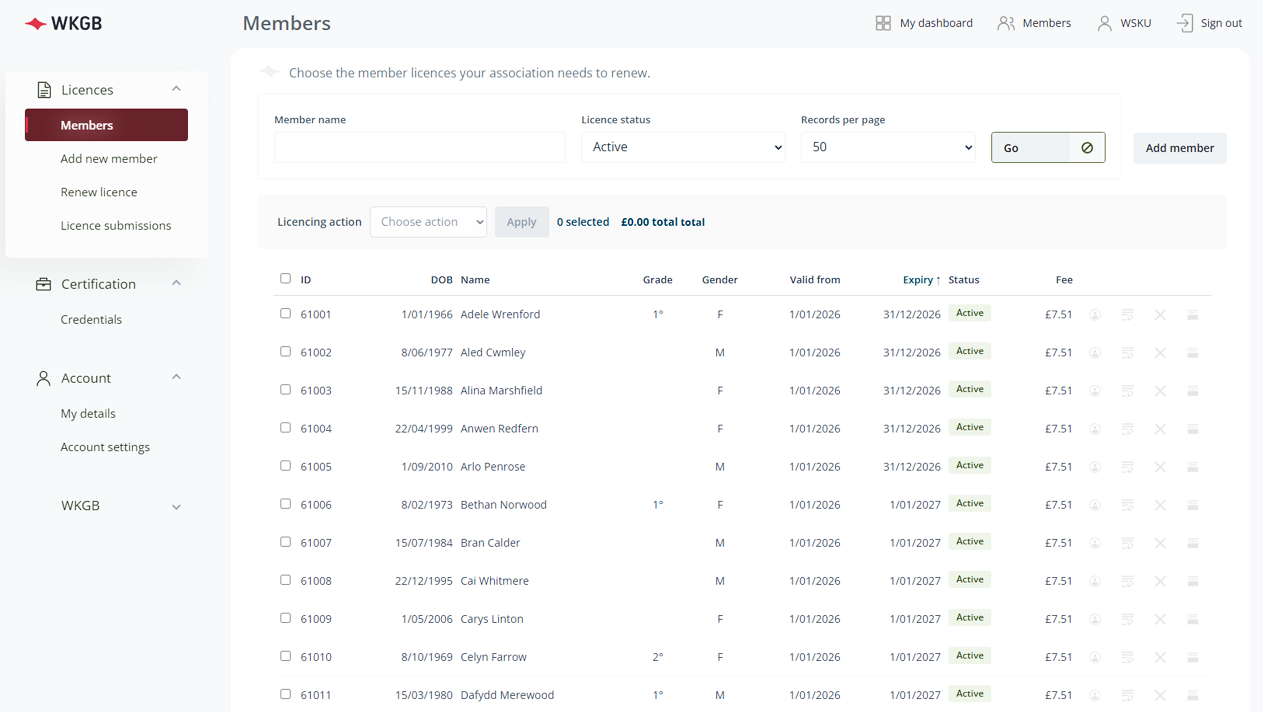
First search your member list to avoid an accidental duplicate. For an existing member, renew the existing licence. If a person already holds a WKGB licence with another association, ask WKGB to confirm whether an association move or an additional linked licence is appropriate.
Select Add new member from the side navigation, or Add member from the Members page. Complete the form:
Check the details and select Add member. This creates a Pending licence and records the association's licence charge. It already awaits approval: you do not need to submit a second renewal to issue it. Its approved term will run for 12 calendar months from the chosen valid-from date.
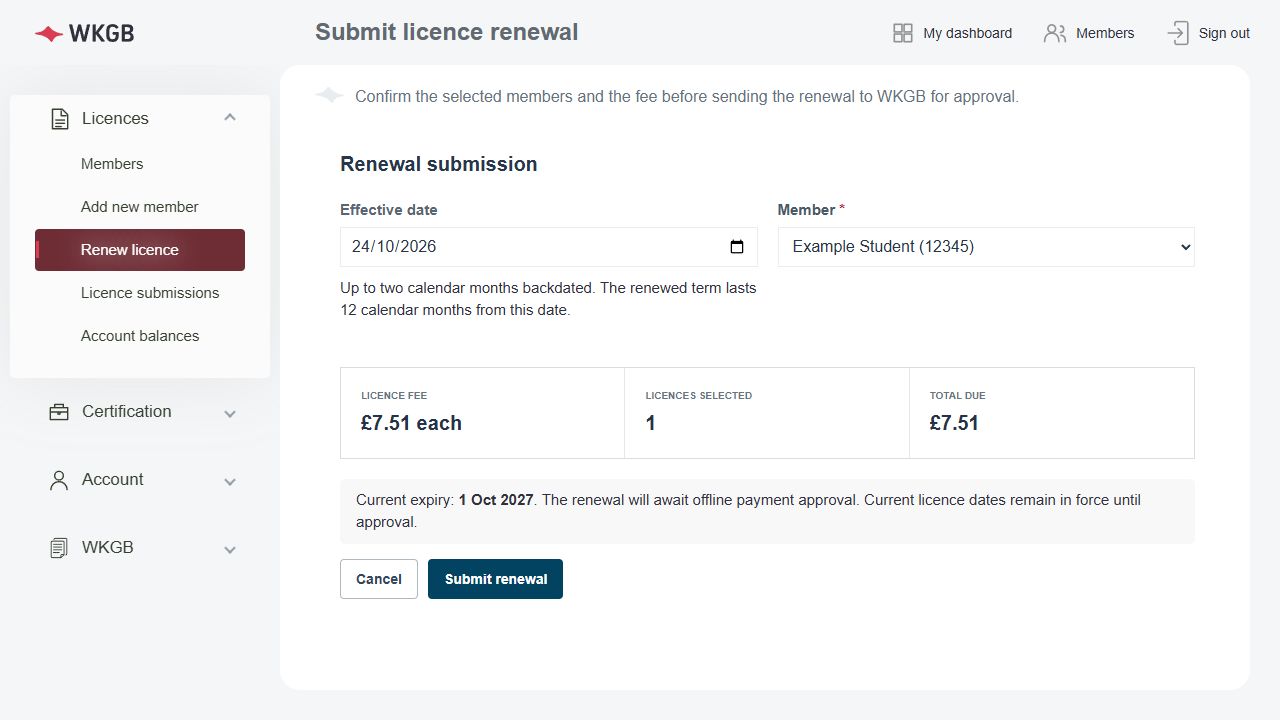
Submission records the renewal and its charge and sends a confirmation email to the account submitting it, with a copy to WKGB licensing administration. Check Licence submissions for the recorded result, including if an email does not arrive.
Payment and WKGB approval follow separately. Submitting an early renewal does not immediately replace the current approved dates. The new term is based on your chosen effective date, not automatically added to the old expiry date or the date WKGB processes it.
Open Licence submissions for your submission history. Each entry shows when it was submitted, its members and licences, status and total. Use the member-name, licence-number and status filters to find an entry. Sort using Submitted, Licences, Status or Total.
Partially active indicates a batch with mixed statuses; check the individual licences in Members. If the page displays a recent-history notice, older submissions may be outside that history window.
The Remove control is for pending entries. Contact WKGB about an already approved licence or a payment allocation that prevents cancellation. To correct a pending renewal's effective date, remove that pending renewal and resubmit it with the correct date, or ask WKGB for help.
The system shows the applicable charge in Members and the total before a renewal is submitted. A renewal submission is not an online card payment.
WKGB administration handles cheque payment and licence approval. Historical opening balances are being reconciled and are not shown to association users during the initial release. No historical ledger total should be treated as a confirmed debt or available credit until WKGB has reviewed it.
A currently valid, approved Active licence can be printed or reprinted. A new pending licence cannot be printed. Where a renewal is pending but the existing licence remains valid, a printout uses that existing approved term.
Each page holds up to eight slips. You can select more than eight licences; the PDF adds further pages automatically. The print icon on one row prints that one licence only.
In Members, search for the person and select that row's View or Edit action. Check the WKGB licence number before changing the details your account may edit, including the optional association registration number. Save the form and reopen the record to confirm the change. Ordinary member editing does not change an approved licence term.
One person may have more than one linked licence. Ask WKGB to review existing records before creating another licence or changing shared personal details.
Contact WKGB if a member moves association. Moving association does not itself renew a licence. Ask WKGB to resolve an incorrect approved date or mistaken approval.
Where available to your account, open Certification > Credentials to review instructor records for PI insurance, first aid, coaching, DBS and safeguarding. To add a credential, select Add credential, type the instructor's name or WKGB licence number, and choose the matching member from the results. Complete the relevant certificate details and select Save. Check the saved entry in the table; the instructor's name and licence details come from the member record. These records are separate from licence renewal and approval.
Under WKGB, open Bulletin for organisation updates, Documents for the document centre or Safeguarding for the safeguarding service. The Licensing guide link returns to this page.
Technical support: for sign-in problems or a feature that does not behave as expected, use the support chat in the licensing system when it is online. If the chat is offline, leave a message there for an emailed reply, or email licensing-support@welshkarate.org.uk. Describe the page and what happened. Never send your password or sensitive member information through the chat.
WKGB Head Office: send all member, licence, association-link and payment enquiries to admin@welshkarate.org.uk. This includes pending licences, approvals, renewals, account balances and corrections. Include your association name and the WKGB licence ID where relevant. Technical support cannot approve licences or reconcile payments.
Submit new members and renewals through the system, check the names and dates before confirming, and wait for WKGB approval before treating a pending licence as active.
Cookies
We use them to help analyse our traffic. By using this site you accept our use of cookies.